At work I use Chrome with two profiles: one for work, one for personal stuff. Different logins, different bookmarks, different extensions. That works well until you click a link in another app.
A link from Rocket.Chat opens in whichever Chrome window happened to be in front. A work document lands in my personal profile, where I’m not signed in. A personal link ends up in the work profile. Then I copy the URL, switch windows, paste it, and close the wrong tab. Many times a day.
The problem is that macOS only knows one default browser. It has no idea that Chrome has profiles, let alone which profile a link belongs to. So I built an app that does: LinkLane.
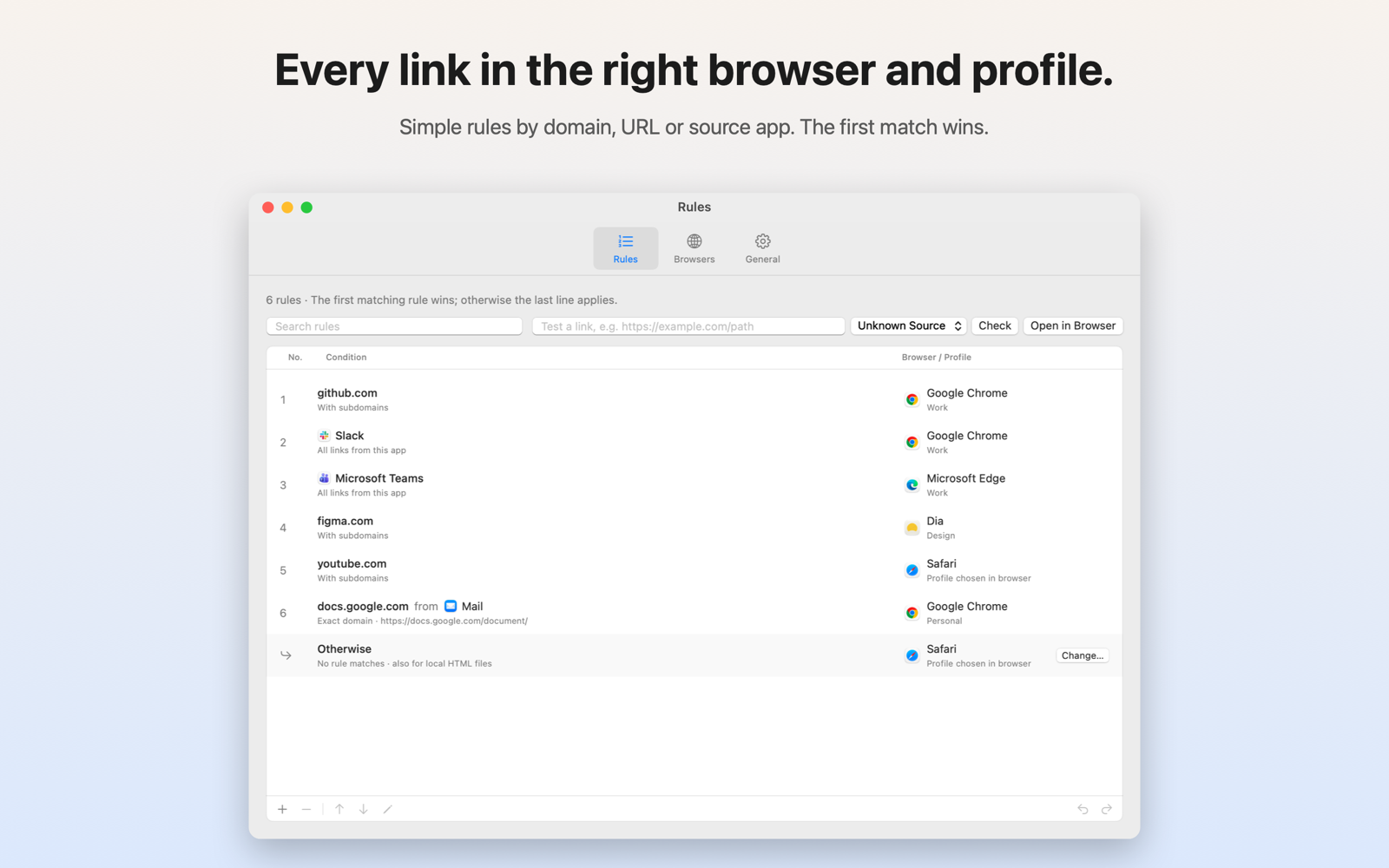
What LinkLane does
You set LinkLane as your default browser once. From then on, every link you click goes through it, and it decides where the link opens. It doesn’t show a window for that. The link simply appears in the right browser and profile.
The decision comes from a short list of rules:
- By domain.
github.comand its subdomains open in Chrome with the work profile. A domain matches exactly or including subdomains, sonotgithub.comnever matchesgithub.com. - By source app. All links from Rocket.Chat or Teams open in the work profile, no matter which domain they point to. This rule turned out to be the one I use most.
- Both together. Google Docs links from Mail go to the personal profile, Google Docs links from Rocket.Chat to the work profile.
The first matching rule wins. If no rule matches, LinkLane opens a default target you choose, or asks you every time.
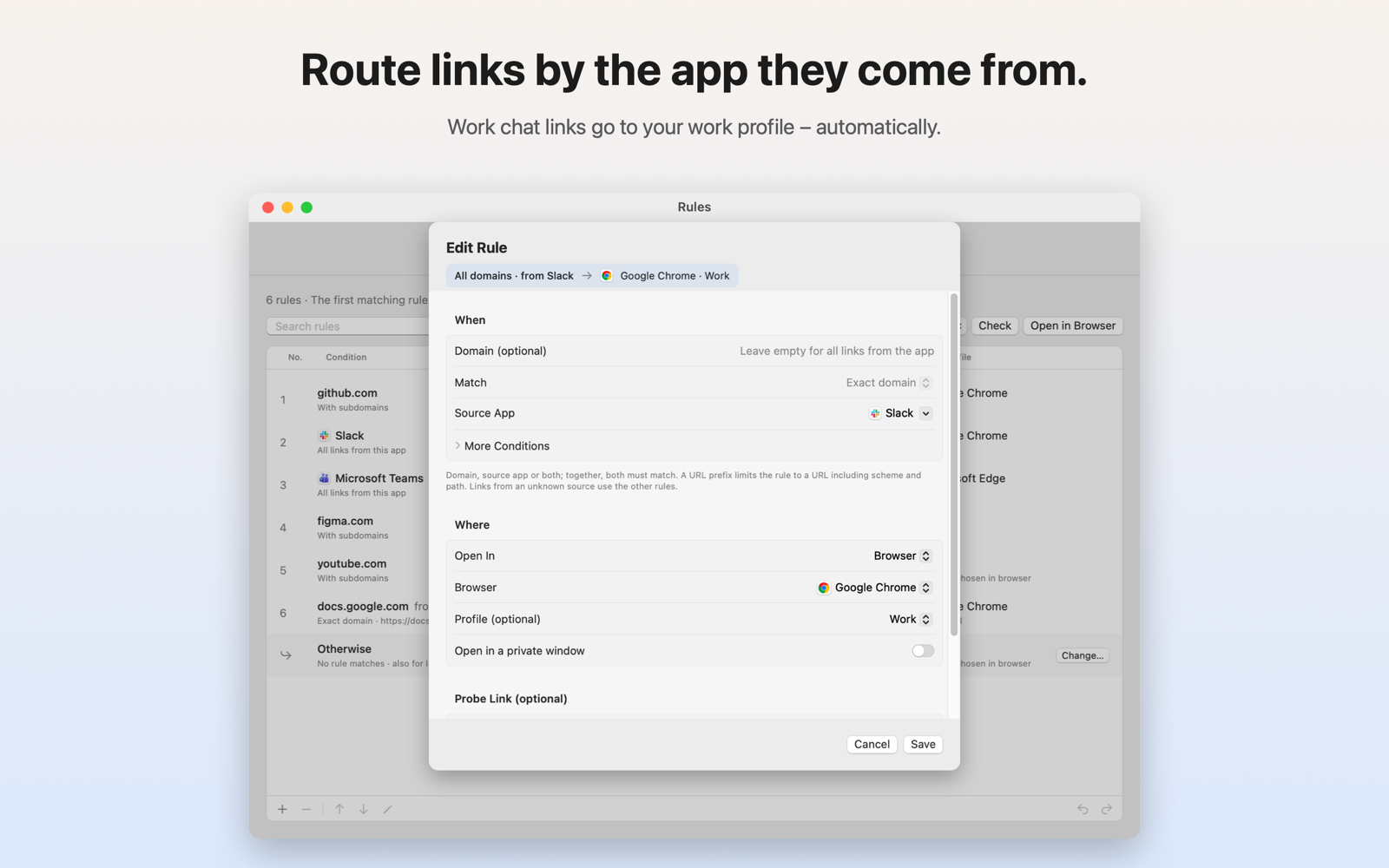
Sometimes a rule is wrong for one particular link. If you hold fn or Shift while clicking, LinkLane shows a small chooser for this one link and leaves your rules alone.
It works with Chrome, Edge, Brave, Vivaldi, Dia, Firefox and Safari. And because I wanted to know why a link ended up where it did, there is a local history that shows the rule, the source app and the target for every link, and lets you turn any entry into a new rule.
How it works
A few parts were more interesting to build than I expected.
Knowing where a link came from. When you click a link, macOS sends the default browser an Apple Event with the URL. That event also tells you which process sent it. Often that is a helper process deep inside an app bundle, so LinkLane walks up to the outermost .app and compares its bundle ID, never the display name. If the sender is unknown, rules with a source app don’t match, but all other rules still do.
Opening a specific profile. Chromium browsers accept a --profile-directory argument with the stable profile folder name, such as Profile 3. LinkLane stores that ID instead of the display name, so renaming a profile doesn’t break any rules. The URL and the profile are passed as separate arguments, never as a shell command. Firefox gets its profile folder via --profile, and Dia is controlled through AppleScript, with the URL and profile name passed as Apple Event data instead of being pasted into script text.
The App Store sandbox. In the sandbox, macOS silently drops launch arguments. The App Store version therefore can’t tell Chrome which profile to use. The solution is a small, separately notarized helper app that only accepts requests from LinkLane’s signature, in one fixed format, without arbitrary options. Without the helper, everything except fixed profiles and private windows works as usual.
Privacy. LinkLane has no account, no analytics and no server. Rules and history stay on your Mac. Even the optional link cleanup, which removes tracking parameters like utm_source and unwraps redirect links, runs entirely locally.
Try it
LinkLane is available on the Mac App Store for a one-time price, with no subscription. More details, the free helper and a guide are on linklane.app, and there is a short overview on my projects page.
If you also juggle browser profiles, I’d like to hear how you use it, and which rule is missing.